

There is no longer a need to code or have a large budget to build a site. Wix enables anyone to build a professional site within a couple of hours. Whether you want to launch a blog, promote a business, or showcase your work, learning how to start a Wix website is one of the easiest ways to get online.
This article walks through how to set up a Wix website, from setup to launch, using practical tips and real examples. By the end, you’ll know exactly how to start a Wix website that looks polished and works smoothly.
Why Is Wix a Smart Choice for Beginners?
It is always good to know why Wix is popular before leaping into the steps. Over 210 million websites use Wix globally, showing broad adoption of its builder tools by individuals and businesses.
Wix is a complete website builder that has hosting, design, and built-in features. All these are done within your browser, making the process simple and flexible.
Wix is preferred by people due to the following reasons:
- No-code drag-and-drop design.
- Hundreds of templates to be customized.
- In-built SEO, blogging, and eCommerce.
- Free and premium plans for various needs.
Wix ticks all the boxes, in case you want to create a site within a short period of time and maintain creative control.
What You Need to Prepare Before You Start?
It is not a good idea to start without preparation because it might require redesigning in the future. Some initial clarity is time-saving.
Before you begin, think about how to start a Wix website. Think about:
- The aim of your site (blog, business, portfolio, store)
- The pages that you will require the most (Home, About, Contact, Blog).
- Colors, fonts, logo (unless you do not have one)
You do not have to have the perfect content on the first day. Direction is good; placeholders are fine.
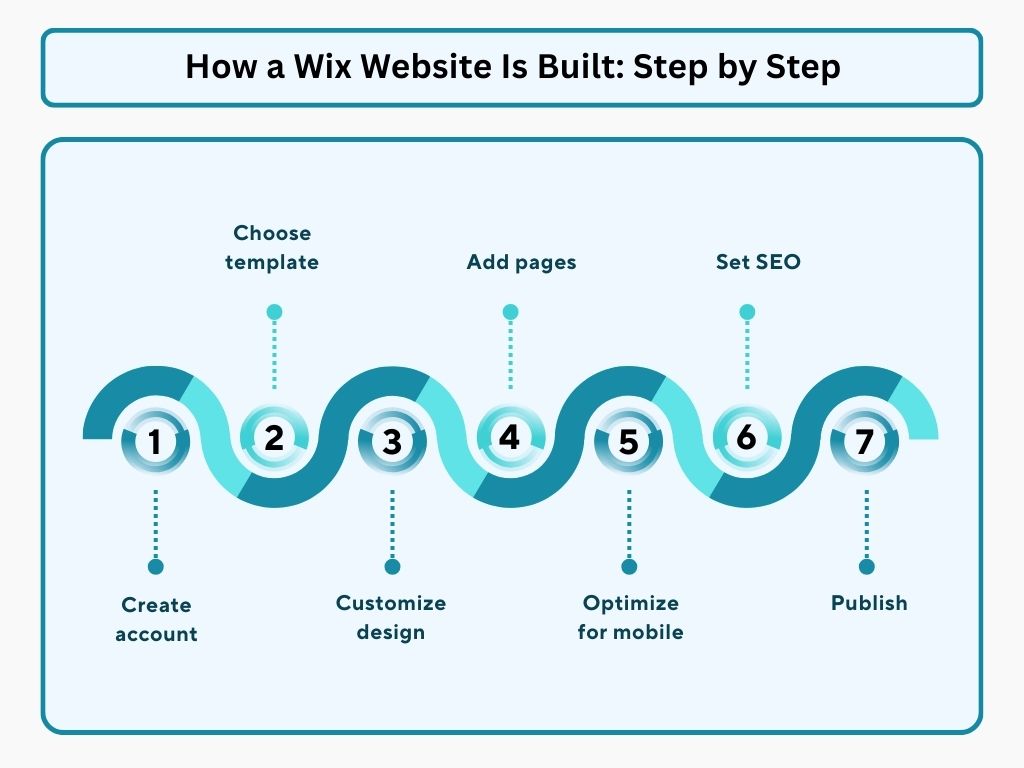
Step 1: Create Your Wix Account
Go to Wix.com and create an account with your email, Google, or Facebook account. After the login, you will be taken to the Wix dashboard, which is the management center of your site.
At this point, Wix begins to take you through the process of setting up. This is where how to start a Wix website truly begins.
Step 2: Choose How You Want to Build Your Website
Wix provides you with two options for creating your site. They are suitable for different users.
1: Wix ADI (Artificial Design Intelligence)
Wix ADI will ask you some questions regarding your intentions and will build you a site.
Best for:
- First-time users
- Quick launches
- Little customization requirements.
The layout is largely automated, and the design can be edited later.
Option 2: Wix Editor (Recommended)
The Wix Editor provides you with a complete layout, design,n and features.
Best for:
- Bloggers and company owners.
- Users who desire custom layouts.
- Long-term websites
Most people learning how to start a Wix website prefer the Wix Editor because of its flexibility.
Step 3: Select the appropriate Wix Template
The templates provided by Wix are divided into categories, such as business, blog, portfolio, and online store. Select one that suits your purpose and not what appears good.
A smart approach:
- Pay attention to the structure of the layout, but not the colors.
- Check mobile responsiveness.
- Search templates with the required pages.
Templates can be customized to the maximum, and thus, nothing is permanent.
Step 4: Design Your Own Webpage
This is where your site begins to get personalized. Drag-and-drop editors are now used by 54% of non-technical users, suggesting ease of use boosts website creation success.
Using the drag-and-drop editor, you can:
- Click any text to edit it
- Replace images with your own
- Modify spacing, color, and fonts.
Use a regular color scheme and two font styles. Clean design creates credibility and makes visitors attentive.
Step 5: Add Necessary Pages and Sections
Any successful site consists of a small number of pages.
Start with:
- Home page: Good headlines and purpose.
- About page: What you are and what you offer.
- Contact page: Contact form, email, or social links.
Add the Wix Blog app, in case you are blogging. Wix Stores are to be installedife you are selling. The App Market enables you to add functionality without any technical effort.
It is the step that makes your project a working site.
Step 6: Mobile Optimize Your Site
Mobile devices contribute more than fifty percent of the traffic to websites. Wix makes a mobile version automatically, but it requires some work. More than 63% of global web traffic comes from mobile devices; mobile optimization is essential for engagement.
Inside the mobile editor:
- Change the size of the text to make it easier to read.
- Conceal parts that do not work on mobile.
- Make sure the buttons are simple to tap.
A mobile experience enhances interaction and search positions.
Step 7: Set Up Basic SEO in Wix
Searching for a presence is important at the very beginning. Wix also has built-in search engine optimization tools that make it easier. Mobile-optimized sites are ~67% more likely to rank on Google’s first page, linking mobile design to SEO outcomes.
Start with:
- Title of the pages that contain your primary keyword.
- Meta descriptions are brief and concise.
- Descriptive URLs
The SEO Setup Checklist of Wix will take you through the process. Completing it helps Google understand your site faster, which is essential when learning how to start a Wix website properly.
Step 8: Domain Name Connection or Purchase
All Wix sites begin with a free subdomain, whereas a custom domain is more professional.
You have two options:
- Purchase a domain via Wix.
- Connect to an owned domain.
Paid Wix is necessary to have custom domains, which adds credibility and brand awareness.
Step 9: Preview and Publish Your Website
Test your site on desktop and mobile before launching it. 53 % of users abandon a website if it takes longer than 3 seconds to load, affecting retention .
Check for:
- Typos or missing content
- Broken links
- Spacing issues
Upon seeing that everything is fine, press Publish. Your site has been launched and is available to the people.
It is a huge achievement to be published, but it is not the end.
Step 10: Improve and Maintain Your Wix Website
Websites grow over time. Minor changes make them new and efficient.
Continuous enhancement involves:
- Publishing new blog posts
- Updating images and text
- Performance review of analytics.
Wix Analytics displays the way visitors engage with your site. Refine content and layout with that information.
Top 10 Wix Website Building Mistakes
The same problems are faced by many beginners.
Avoid:
- Overloading pages with text
- Excessive fonts or colors.
- Ignoring mobile design
- Skipping SEO setup
It is always better to keep things simple.
Conclusion
Wix is a good option in case you need an easy and flexible platform that can expand with your requirements. Learning how to make a website using Wix doesn’t take weeks or technical skills. It entails being clear, consistent, and being ready to perfect as you proceed.
When your site is up, work on content and user experience. The two aspects are the largest difference in the long term.
Ready to build your site?
Create your Wix account and make your idea come to life within hours. Professional assistance can even accelerate this if you need professional assistance in design, SEO, or content.
FAQs
1. Is Wix good for beginners?
Yes, Wix is user-friendly, has drag-and-drop elements, templates, and built-in functionality that does not need any coding knowledge.
2. Is it possible to build a Wix website for free?
Yes, Wix does have a free plan that is hosted, but it is branded with Wix and has a subdomain.
3. What is the time required to create a site using Wix?
Depending on the preparation of content, most users can create and publish a simple Wix site in a couple of hours.
4. Are Wix websites mobile-friendly?
Yes, Wix will automatically generate mobile-friendly versions, which can be customized manually to improve user experience and performance.
5. Is it possible to optimize a Wix site?
Yes, Wix has built-in SEO features, editable metadata, andan SEO checklist to enhance search engine visibility.