
It is thrilling to start an online business until one sits down to construct the store. Questions pop up fast. Where do you start? What settings matter? What can I wait for?
This article breaks down how to set up Shopify store step by step, without fluffing or confusing jargon. Finally, you will know just what to do and why all those steps are important.
Why Is Shopify a Smart Choice for Beginners?
Shopify eliminates the majority of the technical obstacles that prevent launching. You do not need to write code, maintain servers, or connect tools across platforms. About 30% of all global e-commerce businesses sell through Shopify, making it one of the world’s most widely used platforms.
Shopify is preferred by people as it provides:
- An all-in-one dashboard
- Safe checkout out of the box.
- Growing up with your business.
Shopify scales and does not overwhelm you, whether you are selling one good or a hundred.
Planning Before You Open a Shopify Store
Take a moment before clicking on create account. Well, converting stores tends to begin with clarity, rather than design.
Choose a Clear Product Idea
A disorganized product list is confusing to buyers. Focus on:
- One niche
- One main problem
- One clear audience
As an illustration, it is easier to position selling eco-friendly kitchen tools than general household items.
Know Who You’re Selling To
Ask yourself:
- Who needs this product?
- Why would they buy it online?
- What are the objections that they could raise?
These responses will determine your product pages in the future.
Step 1: Create Your Shopify Account
Visit Shopify and create an account with your email address. You will be asked a couple of preliminary questions, but nothing is set in stone yet.
At this stage, you’ll:
- Select the name of the store (it can be changed later)
- Select your country
- Set your default currency
After entering it, you will be on the Shopify admin dashboard- your control center.
Step 2: Become Familiar with the Shopify Dashboard
The dashboard is initially busy, but it is easy to use.
Key areas to know:
- Products – where items live
- Orders – incoming sales
- Customers – buyer data
- Online Store – themes and pages.
- Settings – payments, shipping, taxes.
Five minutes of clicking through. Knowledge is time-saving in the future.
Step 3: Add Your Products in the Right Way
Your store is all about products. In a hurry, this may result in poor conversions. The average Shopify store converts roughly 1.4% of visitors into customers, with top 10% stores reaching above 4.7% conversions.
Create a Product Listing
In the addition of a product, pay attention to clarity:
- Write a benefit-driven title
- Describe what problem it addresses.
- Description should be in short paragraphs.
Avoid copying supplier text. Restate it in the voice of your brand.
Upload Strong Images
Clear visuals build trust. Use:
- Multiple angles
- Close-ups
- Lifestyle shots, if possible
A smartphone even works when there is good lighting.
Set Pricing and Inventory
Be realistic with pricing. Consider:
- Product cost
- Shipping
- Fees
- Profit margin
Inventory monitoring can be used to avoid over-selling, particularly at the beginning.
Step 4: Collection-based Organization of Products
Assortments assist customers in window shopping.
Examples include:
- Best Sellers
- New Arrivals
- Category-based collections
Your catalog saves time with automated collections.
Step 5: Select and configure a Shopify Theme
Design is important, but simplicity is a better converter than flash.
Pick a Theme
Begin with a Shopify theme that is free. They are quick, mobile-adaptable, and personalized.
Look for:
- Clean layouts
- Easy navigation
- Strong product pages
Tailor, but Not Extravagant
Change:
- Colors
- Fonts
- Homepage sections
Avoid cluttering. Products are made to stand with the help of white space.
Step 6: Design Necessary Store Pages
A reputable shop provides answers to questions even before they are posed.
Must-have pages include:
- About Us
- Contact
- Shipping & Returns
- Privacy Policy
- Terms of Service
Shopify is able to create legal pages automatically. Examine them and adapt them to your business.
Step 7: Set Up Navigation Menus
Menus will direct shoppers to your store.
Best practices:
- Keep the main menu short
- Connection to collections, not all the products.
- Include policy pages in the footer.
Easy navigation also lowers friction and increases conversions.
Step 8: Configure Payments
Customers will not make purchases when they cannot pay easily.
The quickest one is Shopify Payments. You can also add:
- PayPal
- Credit/debit cards
- Local payment methods
Activate the test mode to order samples safely.
Step 9: Establish Shipping Settings
Confusion in shipping kills sales quicker than high prices. About 79% of all traffic to Shopify stores comes from mobile devices, though mobile converts at only ~1.2% vs desktops ~1.9%.
Decide:
- Where you ship
- Flat rate vs free shipping
- Domestic vs international
Numerous emerging shops provide free delivery and charge the price of the product.
Step 10: Install useful Shopify Apps (Do not overload)
Apps are an extension, yet many slow down your store.
Start with essentials:
- Product reviews
- Email marketing
- SEO optimization
Install new applications when necessary.
Step 11: Connect a Custom Domain
A custom domain makes your store appear professional.
You can:
- Buy one through Shopify
- Connect an existing domain
After connecting, make it your primary domain and ensure that it has SSL enabled.
Step 12: Pre-launch Testing
Testing eliminates embarrassing errors.
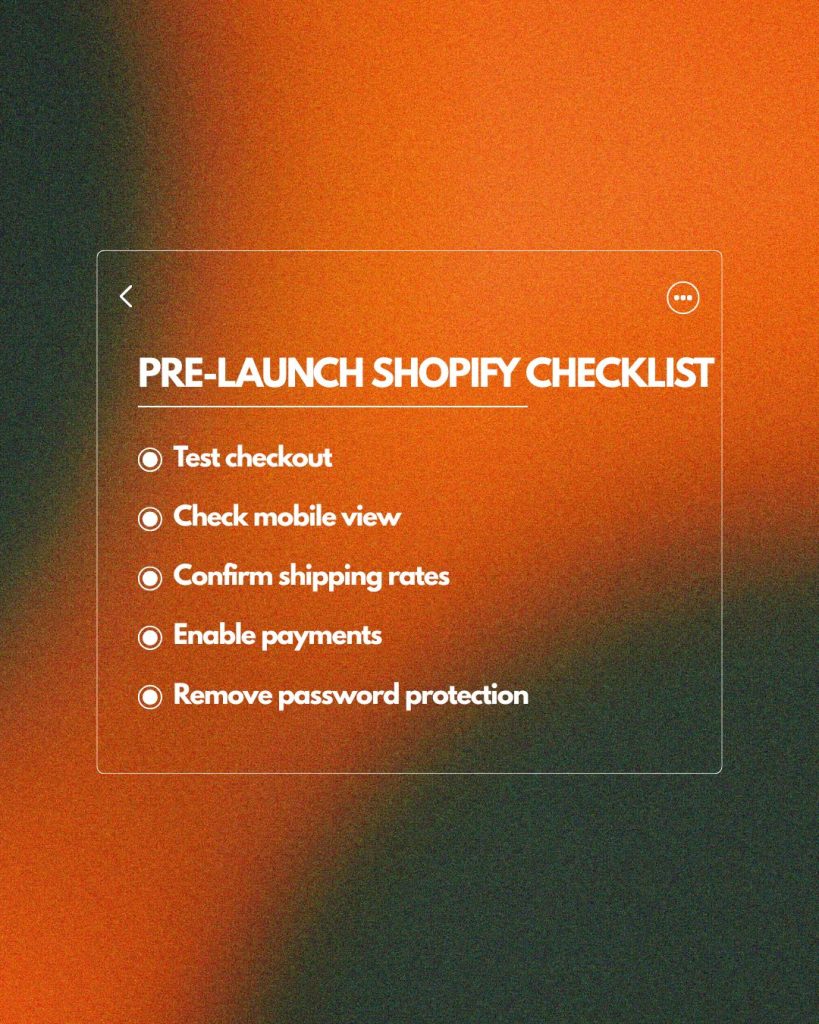
Check:
- Add-to-cart flow
- Checkout process
- Emails and notifications
- Mobile experience
Ask a friend to test as a first-time visitor. New eyes see what you fail to see.
Step 13: Start Your Shopify Store
When everything looks right:
- Deactivate password protection.
- Announce your launch
Post it on social media, email lists, or communities where your audience spends their time.
Once Launched: Growing Your Shopify Store
The introduction is just a start. Approximately 85% of small businesses sell products online, highlighting the rapid adoption of e-commerce selling via platforms like Shopify.
Focus on Traffic
Examples of common traffic sources are:
- SEO
- Social media
- Paid ads
Select one channel and master it before adding other channels.
Track Performance
Shopify analytics show:
- Conversion rates
- Traffic sources
- Best-selling products
Make improvements based on this data.
Top Five Shopify Store Set-Up Mistakes
Preventing errors will save time and money.
Watch out for:
- Poor product descriptions
- Ignoring mobile design
- Overcomplicated navigation
- Checkout without testing
- Checkout without testing to launch.
Sometimes, simple solutions can bring huge profits.
Conclusion
Learning how to set up a Shopify store doesn’t require perfection, just progress. Begin small, start early, and make it better as you go on, knowing what customers react to.
All of the successful stores started with an initial iteration that was not flawless.
And, in case you are willing to transform your idea into an actual online business, it is time to act.
Do you have a question about configuring or optimizing your Shopify store? Contact us now and receive professional assistance depending on your business objectives.
FAQs
1. How long does it take to set up a Shopify store?
A basic Shopify store can be set up in a few hours, while a polished store may take several days.
2. Do I need technical skills to use Shopify?
No technical or coding skills are required, as Shopify provides a beginner-friendly interface and ready-made tools.
3. How much does it cost to start a Shopify store?
Shopify offers affordable plans, and initial costs mainly include subscription fees, apps, and optional domain purchases.
4. Can I sell internationally with Shopify?
Yes, Shopify supports international selling with multiple currencies, languages, and global shipping and payment options.
5. Is Shopify suitable for small businesses?
Yes, Shopify is ideal for small businesses because it is easy to use, scalable, and supports growth over time.